Deploy your first model
A deployment is one open model running on a GPU reserved for your workspace, reachable at its own OpenAI-compatible endpoint and nothing else. This guide takes you from a new console to a live endpoint, and then to your first request.
Before you start
- A workspace. One is created for you the first time you sign in, and everything you make belongs to it. Rename it, or invite the rest of your team, under Team.
- A payment method. Add one under Billing. GPUs are billed while they run, so nothing starts until there is a card on file.
- Somewhere to call it from. You will be asked which source addresses may reach the endpoint, so have your office IP, CIDR range or service hostname to hand.
Step 1: model and endpoint type
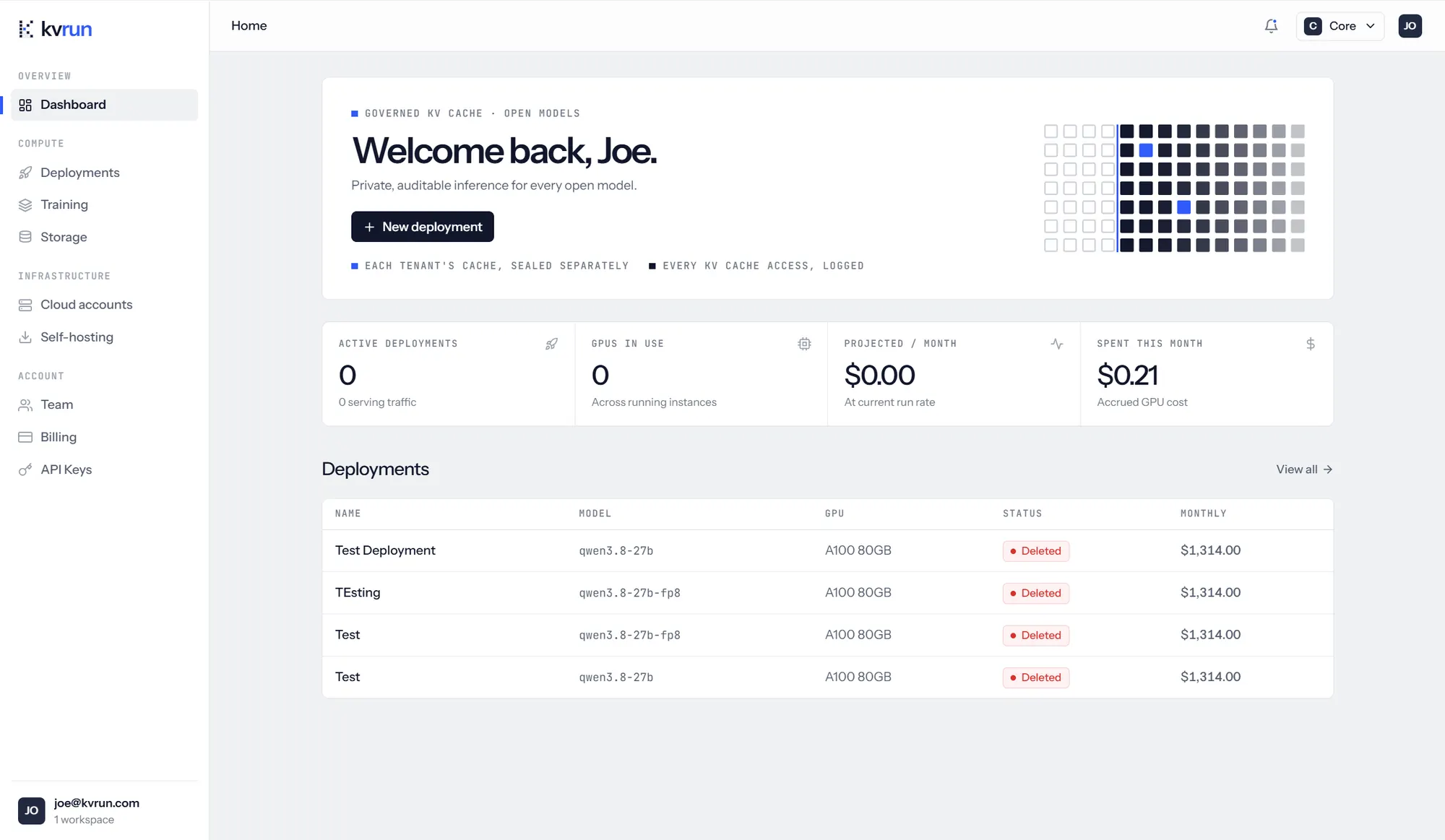
Open New deployment from the dashboard or the Deployments page. The first step covers what you are running and where: the model, how much traffic it has to take, and whose hardware it lands on.
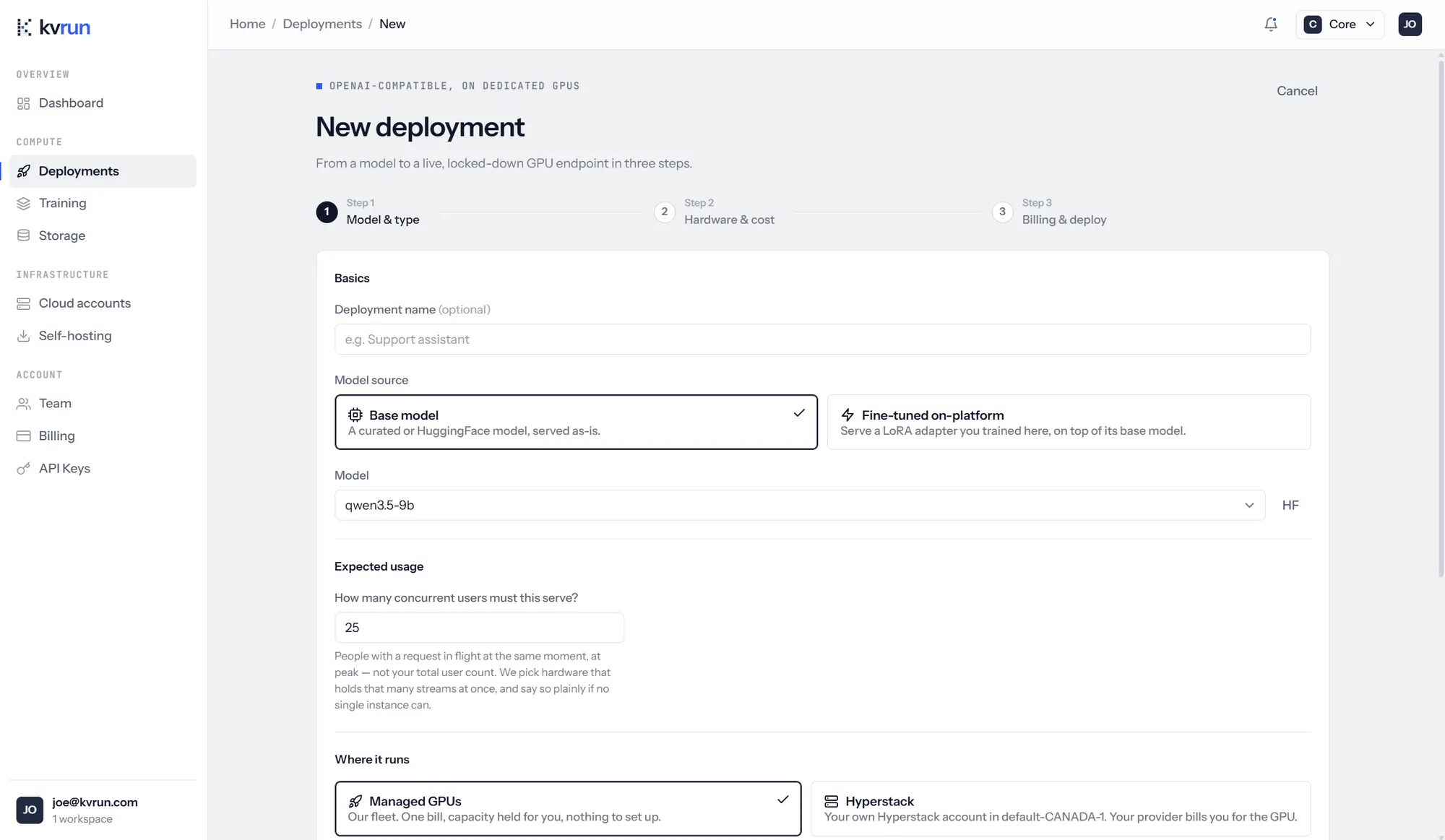
- Model source. A base model is served as-is, from the curated catalog or from HuggingFace. Pick Fine-tuned on-platform instead to serve an adapter you trained here, on top of the base model it was trained against.
- Concurrent users means the number with a request in flight at the same moment, at peak, not your total user count. It is what sizes the hardware in the next step, so a guess that is too round in either direction costs you money or capacity.
- Where it runs is our managed fleet by default. Any cloud account the workspace has connected appears beside it, and choosing one builds the instance in your tenancy, on your cloud bill. See Where your workloads run.
Further down the same step: whether the endpoint is API only or API plus a hosted chat UI, and whether it is stateless. A stateless deployment keeps nothing between requests, which turns off the persistent cache tier and rules out the hosted UI, since that retains chat history.
The full catalog is on the models section of the home page. Anything with published weights that fits the fleet can be served; the adapters you train in Training appear here too.
Step 2: hardware and cost
You do not pick a GPU. kvrun sizes the accelerator from the weights, the context window and the concurrency you gave it, and shows its working before you commit.
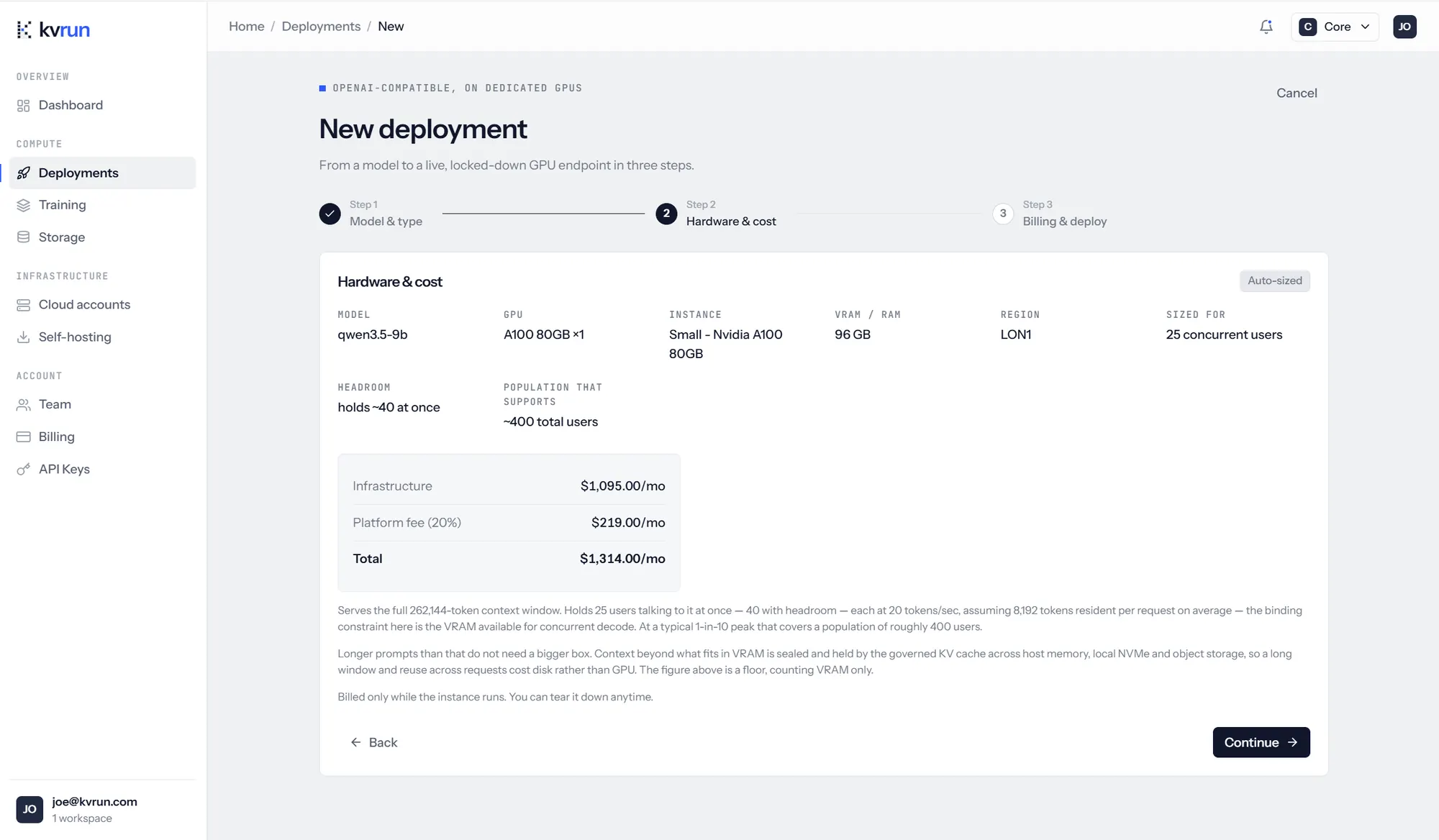
Three figures are worth reading together. Sized for is the concurrency you asked for, headroom is what the box actually holds at once, and population that supports is the total user base that implies at a typical one-in-ten peak. If they sit further apart than you expected, change the concurrency in step 1 rather than arguing with the GPU.
The monthly figure is broken into infrastructure and the platform fee, and totalled. The default region is LON1, London, so prompts and context stay in the UK. Billing runs only while the instance runs, and you can tear it down at any time.
A long context does not need a bigger box. The quoted VRAM is a floor for concurrent decode; context beyond what fits in it is sealed and held by the governed KV cache across host memory, local NVMe and object storage, so a long window costs disk rather than GPU.
Step 3: billing and access
The last step is who may call the model. Give the source IPs, CIDR ranges or hostnames that are allowed to send requests, comma-separated; a network firewall blocks everything else. Leave it blank only if you genuinely want to accept traffic from anywhere.
The allowlist is a second lock, not the only one. Every request also needs the deployment's API key, which is shown once, immediately after you press Deploy. Copy it then. If you lose it, rotate it from the deployment page rather than redeploying.
While it provisions
The deployment appears as provisioning while the instance is built, then running while the weights load, and finally live once the endpoint answers. Large models take longer to load than small ones. The list refreshes itself, so leave it open.
Open the deployment to find its base URL, the API key prefix, the hardware it landed on, its governed KV cache and audit log, and the controls for rotating the key or attaching a custom domain.
Send your first request
The endpoint speaks the OpenAI chat completions API. Change the base URL and the key, and existing code works unchanged.
curl https://<your-endpoint>/v1/chat/completions \
  -H "Authorization: Bearer $KVRUN_API_KEY" \
  -H "Content-Type: application/json" \
  -d '{
    "model": "qwen3.5-9b",
    "messages": [{ "role": "user", "content": "Hello, kvrun!" }],
    "stream": true
  }'
There is more on SDKs, streaming, per-user cache isolation and wiring the endpoint into a coding agent in Call your endpoint from code.
Until you attach a custom domain, a new deployment answers on plain HTTP at the instance's IP address, so the API key travels unencrypted. Add a domain from the deployment page, which issues and renews the certificate for you, before sending anything sensitive.
Questions
- How long does a deployment take to go live?
- A few minutes for the instance, plus however long the weights take to load. The status moves from provisioning to running to live on its own.
- What am I billed for?
- Accelerator time while the instance runs, plus storage, plus the platform fee shown in step 2. Tearing a deployment down stops the clock.
- Can I change the model later?
- No. A deployment serves one model on hardware sized for it. Create a second deployment and tear the first one down when you are ready.
- Where does it run?
- On our fleet in London by default. It can run in your own cloud account or on your own server instead: see Where your workloads run.